UWDC is an acronym for the University of Washington Data Collaborative. It is a state-of the-art computing platform for storage and analysis of large, sensitive data, housed at the UW Center for Studies in Demography and Ecology.
The UWDC provides the infrastructure to harness innovative, but hard-to-access data for the development of novel, high-quality research and evidence-driven policy making.
Critical Resources
Please note on the third Friday of each month, maintenance is done to the UWDC Enclave Systems. If you are experiencing problems, please check the current date to see if it is the third Friday. If so, please wait a few hours and try again later.
Technical support for basic IT needs (connection, VPN, etc.)
To get technical support for day-to-day use of the UWDC Enclave servers, please follow these steps:
- First, review the basic “Steps to Accessing the dCollab Enclave” below and/or the instructions at the start of the data transfer request form.
- If you are logging on, make sure that your username is of the form
netid\myuwnetid
for example, user Jane Doe with UWNetID janedoe would use
netid\janedoe - If you still need support send e-mail to dcollab_help@uw.edu.
Help with data sets
If you need help with a data set or you need help transferring files, contact dcollab@uw.edu.
Enhancement requests
If there are software tools or environment settings that are not available on the Enclave server, send e-mail to dcollab@uw.edu.
New data
If there are data sets that are not available on the Enclave server, but you think would be a good “fit” (i.e., requiring a high level of security and with the potential to be used by multiple researchers or research groups), please fill out our Data Hosting Assessment.
Requesting access to the Enclave
- The first step to getting access to the Enclave is to fill out the UWDC Access Request, which will require you to fill out an overall UWDC data use agreement (DUA).
- Depending on the data set you want to access, you will also need to complete one or more DUAs. We will email you instructions based on the data set you request access for. Please be aware that some of these forms require countersigning. You may also need to complete appropriate training in order to work with specific data. In this case, you will also need to provide your certificate(s) of completion.
Connecting to the Enclave
Once you have been authorized to use UWDC data, follow these steps to access to the Secure Data Enclave. This is a multi-step process whereby you must first use Husky OnNet VPN and DUO Mobile to authenticate yourself as an authorized UWDC user, and then use Windows Remote Desktop to log on to the Enclave server.
Please note on the third Friday of each month, maintenance is done to the UWDC Enclave Systems. If you are experiencing problems, please check the current date to see if it is the third Friday. If so, please wait a few hours and try again later.
- Do not attempt to connect to the Enclave servers using a daisy-chained remote computing session. The connection needs to be made from the computer you are using directly to the Enclave.
- Make sure your computer has Windows Remote Desktop. For Windows clients, this should be built in; for Mac users, search for Windows Remote Desktop in the Apple Store. Another option for Windows is mRemoteNG.
- Install DUO two-factor authentication on a smart phone or tablet.
- Download and install Husky OnNet VPN from UWare.
- After the software is installed, launch “BIG-IP Edge Client”.
- If you have previously made connections using the Husky OnNet VPN, first disconnect from the default Husky OnNet VPN server before proceeding.
- Click “Change Server” and enter:
https://dept-huskyonnet-ns.uw.edu/dcollab
Note: if you experience strange network behaviors on your home network, you may want to try using
https://dept-huskyonnet.uw.edu/dcollab - Authenticate with your UWNetID and password. This login process should be familiar from logging on to other UW web resources.
- Accept the DUO two-factor authentication push notification you will receive on your mobile device.
- Launch Remote Desktop and set the computer to one of these:
- Enclave 1: enclave1.dcollab.washington.edu for data sets
- All Payer Claims Database WA (APCD)
- CCC REDCap
- Chitwan Valley Family Study (CVFS)
- CMSPAC
- Eurostats
- Fragile Families 2021
- Gallup
- Infogroup
- MDS18
- REACH
- WMLAD
- CONCAD
- WPL
- PFML_APCD_LP
- Enclave 2: enclave2.dcollab.washington.edu for data sets
- AddHealth
- CURESCCMS
- CureSci
- HRSCMS
- Marketscan
- Enclave 1: enclave1.dcollab.washington.edu for data sets
Important note: when logging in with Remote Desktop, make sure your user name includes the NETID domain. For example, for user with UWNetID “johndoe” this would be
NETID\johndoe.
You should not enter NETID\ when connecting to the Husky OnNet VPN.
Once you are logged on to the Enclave server with the remote desktop client, should see a Restricted Datasets shortcut on the Desktop (or an R: drive) that will include files in the data set that you are authorized to access.
For Mac users: there is a video that shows how to use the BIG-IP VPN client: https://www.youtube.com/watch?v=Ae4wcf4ok_8. You should be able to follow the instructions, substituting the server names specified above.
Using the Enclave: follow these protocols
- Send requests for technical support to dcollab@uw.edu.
- Dataset file shares are read-only and cannot be modified by users.
- The “My Documents”, “Desktop”, and “Download” folders, or any folders on the C: drive are all temporary. Do not store anything important in those folders. Data stored on C: can be deleted with no advance notification. Also if C: is inadvertently filled, the system will become unstable or non-functional for all users.
- For storing data extracts, programs, and other working files, use your E: drive.
- The X: drive is reserved for file transfers. Requests for transferring files off or on the Enclave must be made using the Data Transfer Request page.
FAQs
Click any of the links below to expand the answer to the question.
Please note on the third Friday of each month, maintenance is done to the UWDC Enclave Systems. If you are experiencing problems, please check the current date to see if it is the third Friday. If so, please wait a few hours and try again later.
If this is not the third Friday of the month:
If you are having network problems (e.g., connecting, logging on, accessing systems), please send e-mail to dcollab_help@uw.edu, making sure to include any relevant information, such as the system you are trying to access, what you did, what you expected to happen and what did happen. Including error messages or screen captures is often helpful.
If you have access to the system but are having difficulties accessing data or performing data transfers, please send e-mail to dcollab@uw.edu. Include any relevant information, such as the system you are on, what data set(s) you are having problems with, what file system location you are using, etc.
Please note on the third Friday of each month, maintenance is done to the UWDC Enclave Systems. If you are experiencing problems, please check the current date to see if it is the third Friday. If so, please wait a few hours and try again later.
If this is not the third Friday of the month:
Make sure you have done the following:
- Downloaded, installed, and configured Husky OnNet.
- Specified one of the correct servers in Husky OnNet:
- Use if you’re from campus https://dept-huskyonnet-ns.uw.edu/dcollab
- Use if you’re from home https://dept-huskyonnet.uw.edu/dcollab
- Specified one of the correct servers in Husky OnNet:
- Set up two-factor authentication.
- Are connecting with remote desktop directly to one of the Enclave servers. Do not attempt to daisy-chain by connecting to the Enclave from a connection you have made to another remote computing session. You need to connect directly from the computer you are using.
UW-IT has a FAQ on Husky OnNet VPN, which may provide helpful information if you are experiencing problems with the VPN.
If you are having network problems (e.g., connecting, logging on, accessing systems), please send e-mail to dcollab_help@uw.edu, making sure to include any relevant information, such as the system you are trying to access, what you did, what you expected to happen and what did happen. Including error messages or screen captures is often helpful.
If you have access to the system but are having difficulties accessing data or performing data transfers, please send e-mail to dcollab@uw.edu. Include any relevant information, such as the system you are on, what data set(s) you are having problems with, what file system location you are using, etc.
If you are having trouble connecting to the Enclaves with WinSCP, in the “Login” section, click “Edit” and then click “Advanced Site Settings”. Under SSH > Authentication, uncheck “Attempt GSSAPI authentication”.
Use this form to request files to be uploaded to or downloaded from the UWDC. These instructions assume that you are already a UWDC user with authorization to access specific data sets. You can access this form below the right sidebar menu on any page of the UWDC Website.
You may need to increase the timeout for your SFTP client. Please see the instructions for increasing timeout settings for WinSCP and FileZilla.
If you have accidentally changed, deleted, or overwritten a file in your Working folder on the Enclave, you can restore previous versions from the file system snapshots.
On the desktop you will see a shortcut to Restore Working Files as below.

The shortcut opens the Enclaven_snapshot where n is the number of the Enclave, as shown below.
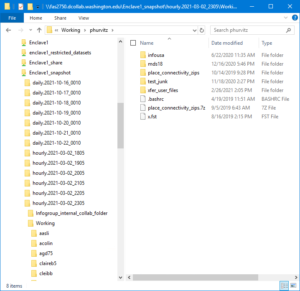 (click image for full size)
There are hourly, daily, weekly, and monthly snapshots. You will need to browse through these folders and files in order to find the version of the file you are interested in restoring.
When you find the file you are interested in restoring, you can copy it to your Working folder (E:\). It is suggested that you restore to a unique location in your Working folder so you can compare the current and previous version(s) of your files. Then when you have verified that you have found the version you want to restore, you can overwrite the erroneous copy with the snapshot version.
Yes, although this requires copying \TinyTeX to %APPDATA%. On the Enclave you can run this command in R:
file.copy("/TinyTeX", Sys.getenv("APPDATA"), recursive = TRUE)
which will take a few minutes to run (it needs to copy many files). After this completes, you should be able to render R Markdown source files to compiled output files.
Alternatively, in R, you can run the script \TinyTeX\copy_tinytex_tree.R which will also copy the necessary files.
“Sensitive” data include elements that could identify specific individuals (e.g., citizens, patients, study subjects) or entities (e.g., businesses).
Release of such data could cause harm to the individuals or entities that the data represent.
By design, no outside network resources are accessible. This protects any confidential or sensitive data. If you need to have files transferred, there is a formal request process.
Many of the most important and intractable societal problems can only be addressed with interdisciplinary research conducted by teams of multiple investigators. The UWDC provides the technology to support this level of inquiry within a high-performance and secure computing environment.
In order for data sets to be housed on the UWDC, they need to show promise for supporting this type of research.
Data are protected using several technological controls.
- Enclave servers
Enclave servers allow in-bound network connections using Remote Desktop Protocol, but they allow only carefully controlled out-bound connections. This means that once a user logs onto the Enclave server, there is no visible internet, no e-mail, and no arbitrarily mountable remote file systems.The Enclave servers host the sensitive data sets in read-only shares that are available only to authorized users. The servers also are equipped with the latest suite of analytic software (e.g., R, Stata, SAS, ArcGIS). - End-to-end encryption
Connections to the Enclave servers pass through a VPN session, so that transmissions between the client and Enclave server are encrypted. A user connected through a “open” WiFi connection would still have encrypted communication between their computer and the server. - Dual-factor authentication
The logon process includes two authentication steps. When the VPN session is initialized, users must provide their UW unique identifier (UWNetID) and password. At that time, a push is sent to their mobile phone requiring a confirmation for logon.
Gaining access to the UWDC is a multi-step process.
- Requesting general access to the UWDC requires an initial overall access application.
- Once general access is granted, the user must request access to specific data sets by uploading completed data use agreement forms. Obtaining access to specific data sets may also entail completing additional training and/or certifications.
Before being able to access any UWDC resources, non-UW personnel need to:
- First obtain a sponsored UWNetID.
- Follow general processes for obtaining approval to use the UWDC (see above).
- Obtain authorization to use DUO two-factor authentication’
If users need external data sets (e.g., GIS files, ancillary tables, scripts) to be loaded on the Enclave, they use a web form to request data upload. The data sets are reviewed by the UWDC Manager, and if they do not contain any forbidden elements, they are transferred to the user’s personal share.
When users complete their analysis, they similarly request a download. The files are reviewed by the UWDC Manager, and if they contain no forbidden elements, they are copied from the Enclave to a share external to the Enclave to which the user has access.
Yes. Send a message to dcollab_help@uw.edu with as many details as you can (name of module, URL, etc.). We will upload a zip file containing the module files for you to install. When you are notified that the zip file is in your X:\ drive, follow the procedure below.
On the Enclave server:
- Create a folder in the E: drive under \ado\plus to store your modules.
- Create a text file in C: under \users\myuwnetid\profile.do (where myuwnetid is your UWNetID) with one line:
do "e:\profile.do"
This will instruct Stata to run e:\profile.do file when it starts. - Create the text file in E: drive under \profile.do containing any customizations or other code you want to run when Stata starts, but include the line
adopath ++ "e:\ado\plus"
This will instruct Stata to append to the ADOPATH your e:\ado\plus folder, where your modules are to be stored. - Unzip the archive and place the files in the E: drive under \ado\plus. By convention, files should go in the folder named with the first letter of the module, so for example you may create folders in the E: drive under \ado\plus\a, E: \ado\plus\b, and so on. However, this file system arrangement should not be necessary
Following this procedure will make your Stata startup robust to file system changes. When the Enclave servers are rebuilt, your E:\ folder will get automatically mounted on the new server, so your customizations will be maintained. The only action that would need to be taken would be to recreate the one-line C: \users\myuwnetid\profile.do file. If you were to put customizations in C:\ users\myuwnetid\profile.do, or to put modules in C:\ado or another location on the C: drive, this would not be robust against changes in the system, since the contents of C:\ do not get moved to the new system.
We are working out financial models for how users will pay for having their data sets hosted. If you do have a data set you would like us to host, please see Request for UWDC data set hosting.
UWDC systems are currently aligned with NIST 800-171 and HIPAA. Note that we use the terminology “aligned” rather than “compliant” because we have not undergone external audits. However, we have had data use agreements authorized that are aligned with those standards.
Each data use agreement will have a number of detailed and specified controls, rather than blanket statements such as “must be HIPAA compliant.” We review each control to become compliant with the data use agreement rather than a specific standard.
There may be fees for specific uses of the UWDC. These are still being worked out and this FAQ will be updated when the fee structure is finalized.
You may get instructions from UWDC support personnel to “logout and log back in.”
To do this:
- Locate the Enclave server’s Windows task bar.
- Right-click the Windows start button.
- Click Shut down or sign out > Sign out.
This is different from just disconnecting and reconnecting your remote desktop session.